How to Read a Fish Finder: Understanding the Sonar Display
To read a fish finder, first locate the current depth, then use the scrolling sonar window to compare returns against the bottom trace and the depth scale. A fish finder shows sonar information over time, so the newest reading is typically at the display edge while older returns move across the screen. Sensitivity and surface-clutter settings determine how much detail you see.
The exact labels, colors, icons, and screen direction vary by model. I find it more useful to learn the relationships on the screen—depth scale, bottom, targets, and noise—than to rely on a particular symbol or fish icon.
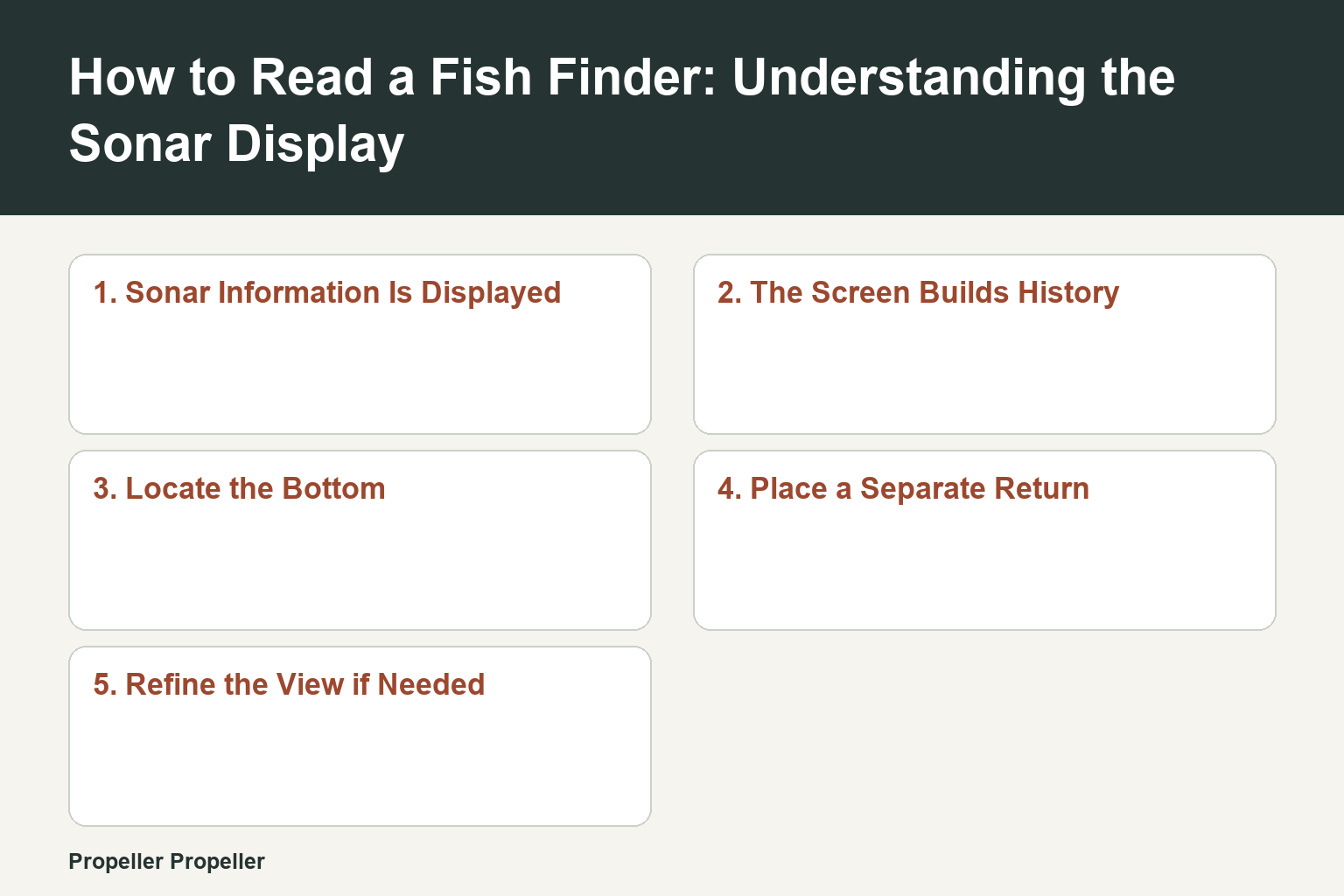
- Sonar Information Is DisplayedThe sonar window receives and presents return information alongside a depth reading and depth scale.
- The Screen Builds HistoryAs the view scrolls, the display retains older returns while adding newer information at its current edge.
- Locate the BottomMatch the continuous bottom trace to the depth scale and reported depth.
- Place a Separate ReturnUse its position relative to the surface, depth scale, and bottom trace to estimate where it lies in the water column.
- Refine the View if NeededSensitivity affects target visibility; surface-clutter reduction specifically reduces near-surface sensitivity. ორივ
A fish finder presents sonar returns over scrolling display history; use the depth scale and bottom trace to interpret where a separate return appears in the water column.
Start With the Display’s Three Reference Points
Most fish-finder displays give you three anchors for interpreting the sonar view: a numerical depth reading, a depth scale, and the bottom return. The depth number states the unit’s reported water depth. The scale lets you place a return at an approximate depth, while the bottom trace is the continuous return that corresponds to the lake or seabed. On classic displays, the sonar window is the main area where these returns appear and sensitivity may be shown as a bar graph.
1Read the reported depth
Use the numerical depth value as the unit’s current estimate of water depth. Treat it as a live instrument reading, not as a substitute for careful navigation.
2Find the bottom trace
Match the continuous bottom return in the sonar window to the depth scale. Its position should align with the reported depth when the display is reading conditions clearly.
3Place other returns by depth
Use the same scale to estimate where a separate target lies between the surface and bottom.
| Screen Element | What It Tells You | How to Use It |
|---|---|---|
| Numerical depth | The unit’s reported current water depth | Compare it with the bottom trace before interpreting other returns. |
| Depth scale | Reference depths within the sonar window | Estimate a return’s position between surface and bottom. |
| Bottom trace | The continuous return associated with the bottom | Use it to recognize depth changes and separate other returns where possible. |
| Sensitivity indication | The active sensitivity setting on displays that show it | Use it to understand why the screen may show fewer or more returns. |
Sources: Standard Horizon FF525 CP-N Operation Manual — Fish Finder Display and Surface Clutter Reduction · Humminbird LCR4000D Operations Manual — Learning to Read the Display · Minnesota Boating Guide
Understand the Scrolling Sonar History
A fish finder does not present a still cross-section of all the water beneath the boat. Its sonar window builds a history of returns as the display scrolls. That is why a return farther from the newest display edge is older information, and why the bottom trace can rise or fall across the screen as depth changes. Check your unit’s manual for its particular screen orientation and display conventions.
- A relatively level bottom trace indicates little change in the displayed depth over that span of sonar history.
- A bottom trace that shifts toward a shallower or deeper depth marking indicates changing water depth as the screen history was recorded.
- A distinct return separated from the bottom is a target return, but its presentation and any icon interpretation are model-specific.
Sources: Standard Horizon FF525 CP-N Operation Manual — Fish Finder Display and Surface Clutter Reduction · Humminbird LCR4000D Operations Manual — Learning to Read the Display
Interpret Targets in Relation to Bottom and Depth
The most dependable first interpretation is positional: determine whether a return is near the surface, suspended in the water column, or close to the bottom. A fish finder can show underwater targets, but the supplied manuals support reading the return in context rather than treating every mark or icon as a certain fish identification. Surface noise and sensitivity settings can affect what appears on-screen.
- Near-surface returns deserve extra scrutiny because surface noise can clutter that area of the display.
- A return clearly separated from the bottom can be located with the depth scale before you decide what it may represent.
- Returns close to the bottom require comparison with the bottom trace, because the display can make closely positioned returns harder to distinguish.
Sources: Standard Horizon FF525 CP-N Operation Manual — Fish Finder Display and Surface Clutter Reduction · Humminbird LCR4000D Operations Manual — Learning to Read the Display
Set Sensitivity for a Usable Picture
Sensitivity controls how readily the fish finder displays sonar returns. Too little sensitivity can reduce target visibility; more sensitivity can reveal more return detail but can also make the display noisier. The LCR4000D manual illustrates sensitivity as a bar graph, but the control name and presentation may differ on another unit. Adjust it by watching whether the sonar window becomes readable rather than assuming one setting works everywhere.
1Begin with the unit’s current or automatic setting
Look at the bottom trace and the general amount of detail in the sonar window before making changes.
2Make a small sensitivity adjustment
Increase or decrease sensitivity according to the control scheme on your specific unit, then observe the resulting returns.
3Keep the setting that preserves a clear bottom and useful targets
Avoid adjusting solely for a busy screen. The goal is interpretable sonar information, not the largest possible number of marks.
Sources: Standard Horizon FF525 CP-N Operation Manual — Fish Finder Display and Surface Clutter Reduction · Humminbird LCR4000D Operations Manual — Learning to Read the Display
Use Surface-Clutter Reduction Carefully
Surface-clutter reduction is a depth-dependent sensitivity adjustment: it decreases sensitivity near the surface and increases it with depth. This can reduce surface noise, which otherwise may lead to a shallow-water misread or an incorrect bottom display. The trade-off matters: excessive clutter rejection can also reduce weak, real targets near the surface. In my view, it is a correction for a specific noisy area, not a setting to maximize by default.
1Identify whether the unwanted returns are concentrated near the surface
Use the depth scale and sonar window to distinguish surface-area clutter from returns deeper in the water column.
2Apply only enough surface-clutter reduction to improve readability
The setting is intended to reduce near-surface sensitivity while retaining stronger sensitivity farther down.
3Recheck shallow targets and the bottom reading
If the setting is too aggressive, weak real targets near the surface can be reduced along with noise.
| Control | Primary Effect | Trade-Off to Watch |
|---|---|---|
| Sensitivity | Changes how readily returns are displayed across the sonar view | Lower settings can reduce target visibility; higher settings can produce a noisier display. |
| Surface-clutter reduction | Reduces sensitivity near the surface while increasing it with depth | Too much reduction can lessen weak real near-surface targets. |
| No adjustment | Preserves the current balance of displayed information | Surface noise may remain and can interfere with shallow-water or bottom readings. |
Sources: Standard Horizon FF525 CP-N Operation Manual — Fish Finder Display and Surface Clutter Reduction
Read It as One Part of Safe Boat Awareness
A fish finder is a boat-mounted electronic aid for underwater awareness, but it is not the only source of information to use while operating a boat. Its screen can be affected by surface noise and can show an incorrect bottom under some conditions. Read the display while maintaining attention to the surrounding water and normal safe-boating responsibilities.
Sources: Standard Horizon FF525 CP-N Operation Manual — Fish Finder Display and Surface Clutter Reduction · Minnesota Boating Guide
Frequently Asked Questions
Does a fish finder show live water directly under the boat?
It displays sonar information as a scrolling history. The newest information is typically at one edge of the sonar window, while returns farther across the screen are older.
How do I know how deep a target is?
Locate the target return in the sonar window, then compare its vertical position with the display’s depth scale. The numerical depth readout refers to the reported bottom depth rather than automatically identifying every target.
Why does the bottom line move up or down on the screen?
Because the display is recording sonar history. A changing bottom-trace position relative to the depth scale indicates changing displayed depth over that recorded span.
Should I turn surface-clutter reduction all the way up?
No. It can improve a noisy surface area, but excessive reduction may also diminish weak real targets near the surface.
Are fish icons and screen labels the same on every fish finder?
No. Display conventions, labels, scaling, and icon behavior are model-specific. Use your unit’s manual to identify its particular controls and symbols.
Final Thoughts
Read the depth and bottom first, then place other returns against the depth scale. Adjust sensitivity or surface-clutter reduction only when the screen needs clarification, and keep their trade-offs in view.